In a project I’m working on, we had a Flow that updated a SharePoint list with data from an Azure Table Storage.
At first I created the flow to be triggered recursively every 1h, but after a while we wanted to give the possibility to execute it manually (From a PowerApp or a mobile button).
Duplicate the flow was not an option, so we had to change the trigger to allow multiple ways to execute the same Flow.
To do that, we changed the initial trigger from Recursive to HTTP Request. Then We created 3 other flows, with different triggers, each followed by an HTTP Action calling a POST request to the first flow.
Finally we had 4 flows that triggers the same logic:
1 flow containing all our logic triggered by an HTTP Request
1 flow with a recursive trigger, calling the 1st one
1 flow with a manual trigger, calling the 1st one
1 flow with a PowerApp trigger, calling the 1st one
The purpose of this article is to explain how to use the attachment control in PowerApps to allow a user to attach a file before sending an email.
First of all thanks to @WonderLaura for her article that helps me in my solution. And here is the documentation about the attachment control
In PowerApps the Attachment control works by linking a SharePoint list (Or CDS) to a form. Thanks to PowerApps, when the file is chosen by the user, it’s content is saved inside a blob as well as it’s name. There is no need to save the form for that, this action is only needed when you want to save the file to SharePoint.
So we are going to use this feature to allow the user to chose a file and send it as mail attachment but without the need to save it to SharePoint first. The SharePoint list used here is only used to “connect” the form to something that can eventually host attachment. So it’s a bit like a ghost list 🙂
The result of my empty/ugly app that select an attachment from local computer and send it via email
In order to do that, start by creating a new empty App in PowerApps.
The dataSource
A SharePoint List named: MyFirstList with nothing more than the title. Attachment is enabled for this list
The list is empty
The reload button at the top (Optional)
OnSelect:
// refresh my datasource (Optional)
Refresh(MyFirstList);;
// Clear a local collection and collect the attachments of the first item of my list (Optional)
ClearCollect(colAttachments; First(MyFirstList).'{Attachments}’)
The form (Required)
Add a new Edit Form
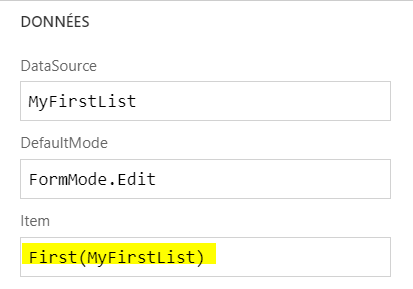
Choose MyFirstList as datasource
Select the Attachment Field
Important step: Change the Item property of the form for this value: First(MyFirstList)
The Pièces jointes_DataCard2 properties (Unlock if necessary)
The DataCardValue8 properties (Unlock if necessary)
OnAddFile:
//Refresh the local collection with the data of the control
ClearCollect(colAttachments; DataCardValue8.Attachments)
OnRemoveFile:
//Refresh the local collection with the data of the control
ClearCollect(colAttachments; DataCardValue8.Attachments)
NB: Yes, it’s the same formula.
At this point, when you launch the App, the Attachment control should be enabled and you should be able to select a file from your disk. The data of the file will be saved in the local collection. Here is an example:
The Button to send the email (required)
The button uses the Office365 connector with the SendEmail action.
For the attachment, it uses a Table with specific columns:
Name, ContentBytes, ‘@odata.type’.
That’s what we are going to create when the user click the button.
NB: I’ve not been able to send multiple attachments yet, so for now I just send the first or last item or the collection. The error when the attachment table contains multiple items: The managed blob uri is not owned by the current app’s BlobManager
Not yet figured it out…
OnSelect:
//Create a new Table
ClearCollect(FinalAttachments; {Name:Last(colAttachments).DisplayName; ContentBytes:Last(colAttachments).Value;’@odata.type’:””});;
// Send the email
Office365.SendEmail(“me@me.com”; “My Subject”; “My Body”; {Attachments:FinalAttachments})
That’s it, when the user click the button, it will create a new Collection with the 3 specific columns required for the Attachment and send it.




 technicalreminder.tech.blog